

CSV batch inventory upload
Upload inventory data into your store by providing Synkro with a CSV file, containing barcodes/SKUs along with the inventory level available at each of your locations.
Last updated April 1, 2026
Quick Setup
-
In the menu bar navigate to
Tools > CSV inventory upload. -
Click
Download a template for your store. -
In the downloaded csv, each row contains an identifier (sku/barcode) and the inventory amounts for each location in your store. Delete
example-skuand add your data.Make sure the identifier (e.g sku) already exists in your store, otherwise the inventory will not get updated.
-
Upload your csv to the
CSV inventory uploadpage.
Your inventory levels will update shortly. If anything unexpected occurred, a detailed guide is available below with troubleshooting steps.
Overview
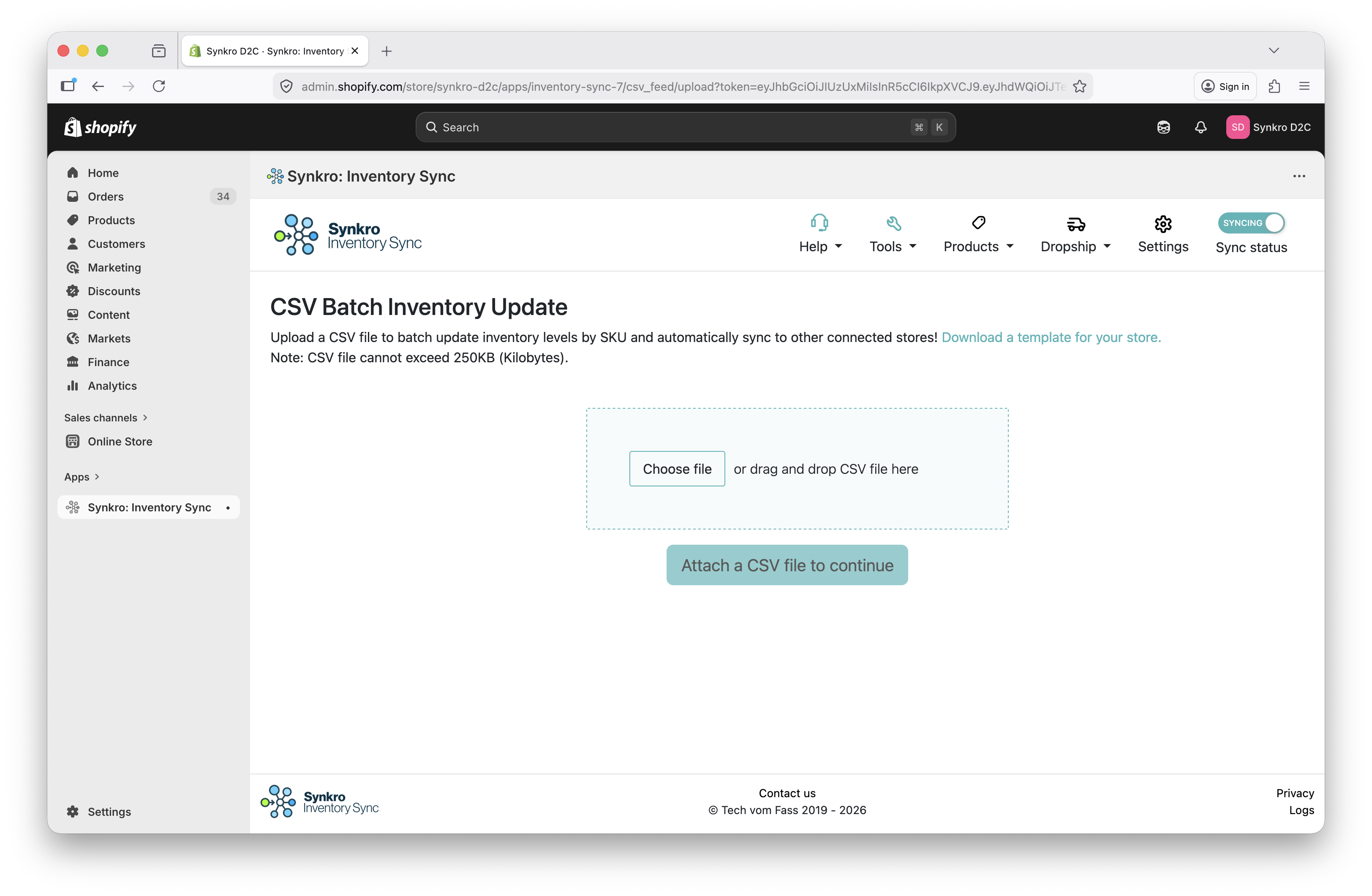 Update inventory in bulk with Synkro’s CSV inventory upload tool
Synkro’s CSV Batch Inventory Update tool allows you to update inventory levels of products within your store by SKU or Barcode (depending on your syncing mode). This tool is commonly used to transfer inventory data from any third-party inventory system into your Shopify store. This tool supports multiple inventory locations, meaning you can update your inventory by SKU across all of your Shopify inventory locations.
Step 1: Download a CSV template for your store
Synkro requires that the CSV file is formatted correctly to be compatible with the bulk inventory upload system. In order to get a CSV file which is formatted correctly for your store, click on the “Download a template for your store” link within the CSV Batch Inventory Update area of the Synkro app. The CSV file format will be different for each Shopify store, so make sure you are not attempting to re-use the CSV file generated for another Shopify store.
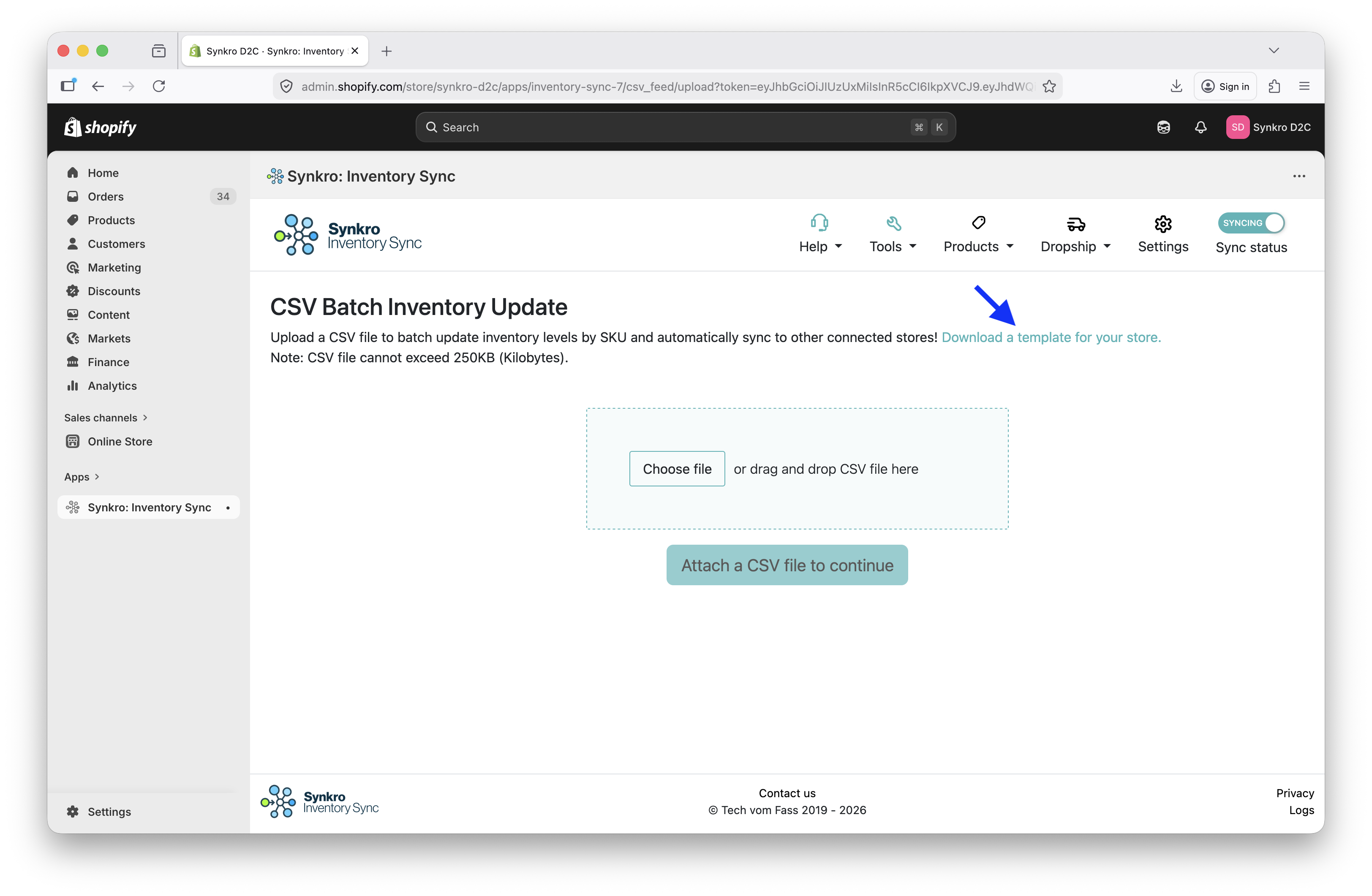 Click
Click Download a template for your store button and a file will be downloaded to your computer
Step 2: Insert your own data into CSV template
After clicking the “Download a template for your store” button, a file will have been downloaded to your computer. Open this file with an application like Microsoft Excel and replace the example data with your own.
A note about your CSV editor
Many CSV editors such as Microsoft Excel and Apple Numbers will prompt you to save the CSV file into a different format (.xlsx, .numbers, etc) or replace the delimiter with something other than commas. In order for the file to remain compatible with Synkro’s CSV upload system, the file must remain a comma-delimited .csv formatted file.
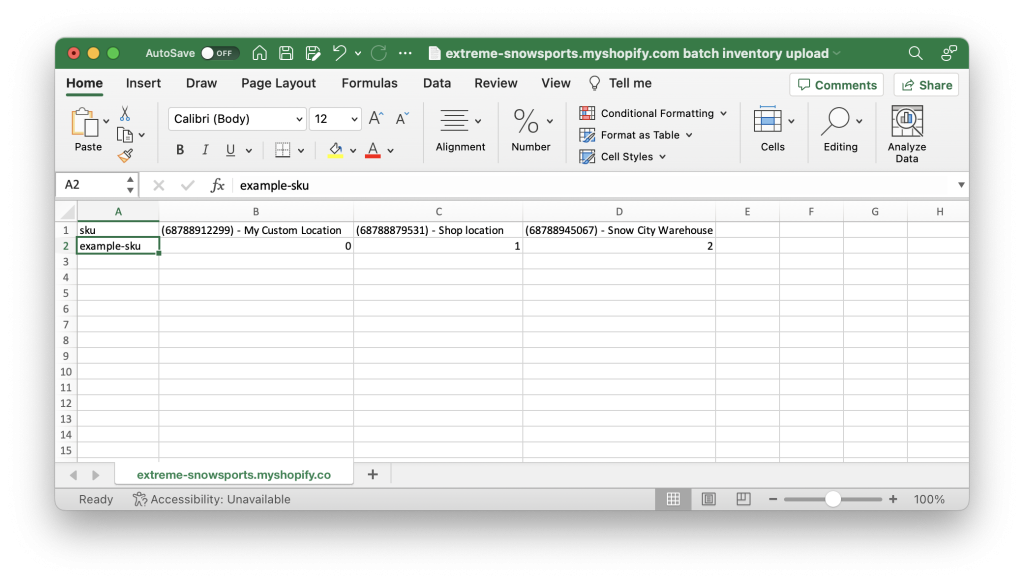 Template CSV file with example data
In the CSV template, you will find the first column with the heading “sku” or “barcode”, depending on your syncing mode. The following columns are marked with an inventory location ID as well as the inventory location name.
The second row of the template shows an example SKU “example-sku” as well as some example inventory levels corresponding with the inventory locations in each row. Remove this example row and insert your own data.
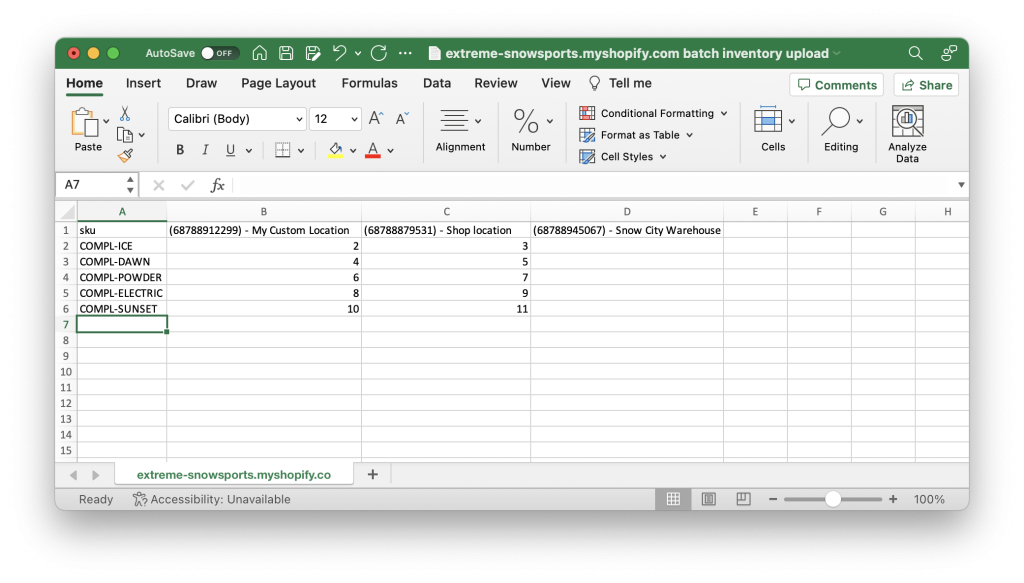 CSV file with your own inventory change data
Replace the example data with your own inventory data with the following considerations:
- Only SKU values which you enter into the CSV file will have their inventory modified. Other SKU values in your store which are not included in the CSV file will not be modified.
- SKU values which do not correspond with variants in your store will be ignored.
- Leaving a cell blank will indicate to Synkro that it should not modify that inventory location for the corresponding SKU.
Step 3: Upload the CSV file into the Synkro app
In the Synkro app, on the “CSV Batch Inventory Update” page, upload your edited CSV file and then click “Begin batch update”.
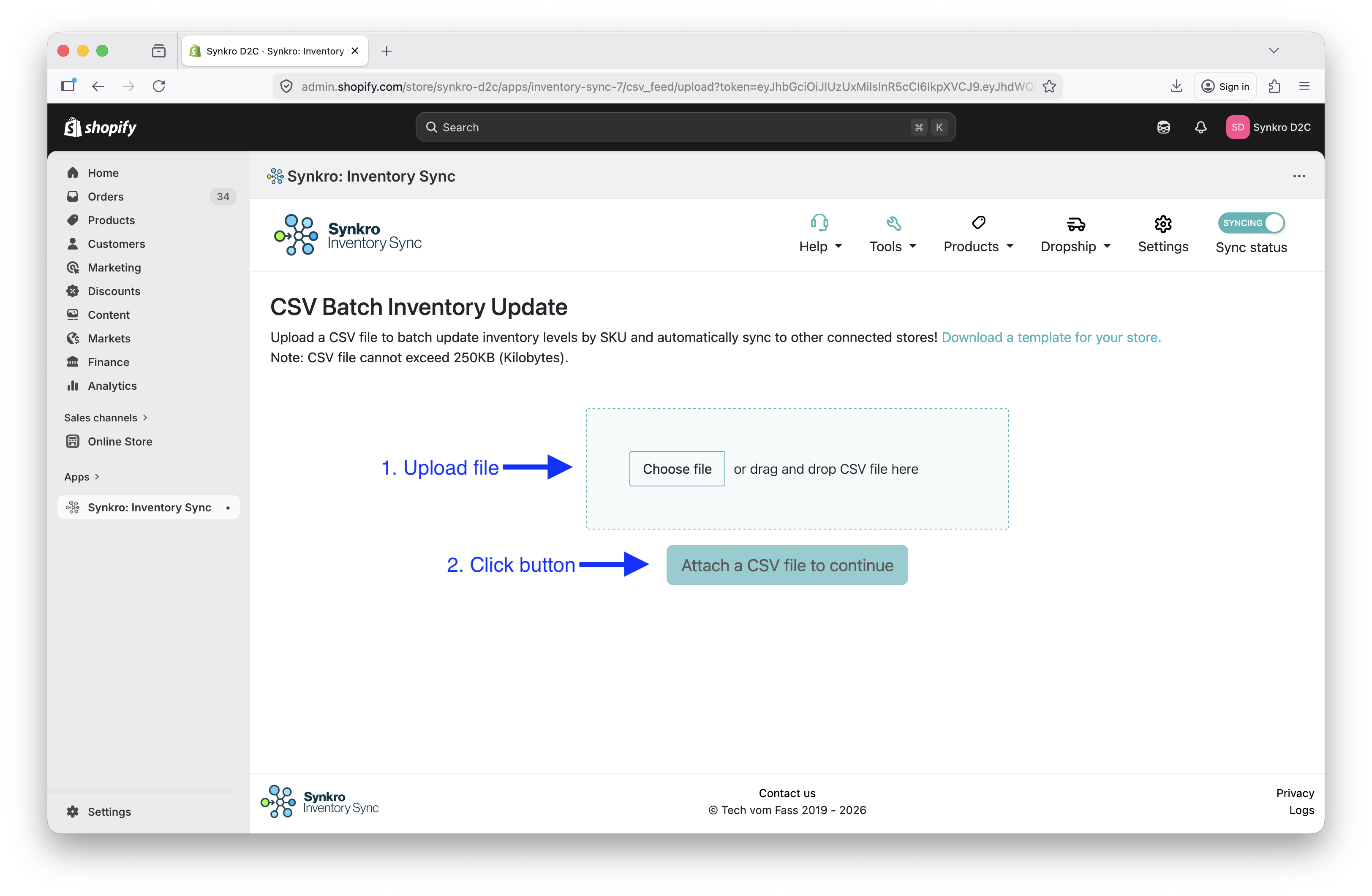 Upload your CSV file and click
 Begin batch update
The inventory update process will begin and will continue working in the background. You will not receive an email when the inventory update is complete, but you will notice your inventory data being updated within your Shopify stores for the SKU values specified in your CSV file.
Complete
Nicely done! If everything worked, you will see your inventory updated in your store based on the SKU values and inventory levels which you provided in the uploaded CSV file.
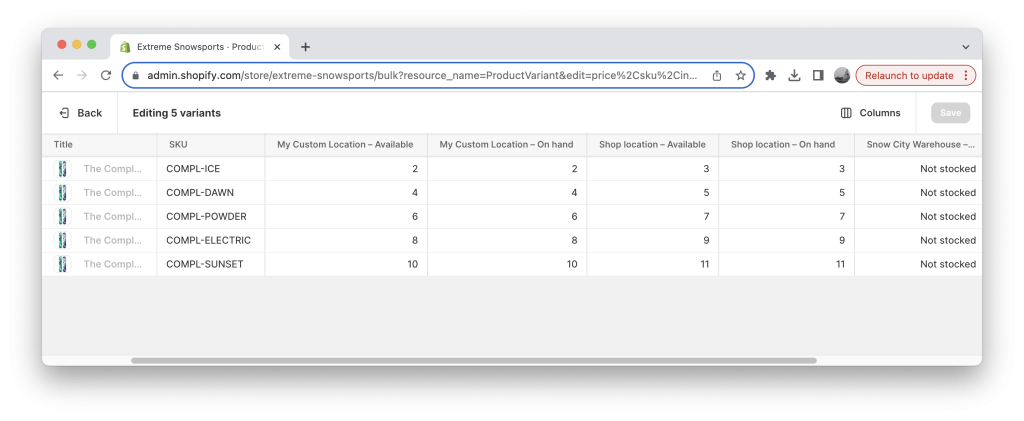 Inventory updated based on provided CSV file data (in Shopify bulk edit)